Bus tracking — how it works
Every picture below is the real screen. Follow the steps in order.
- 1
Open Buses & Tracking
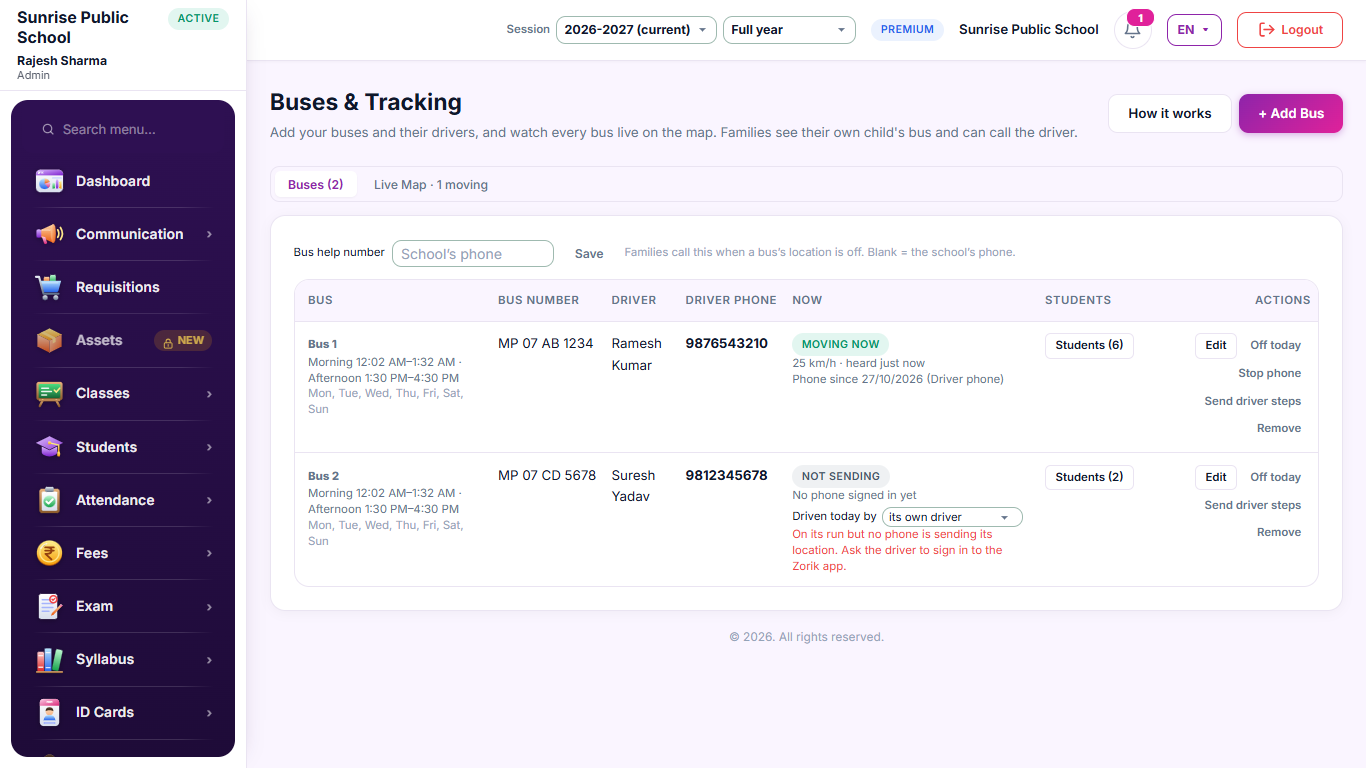
In the menu, Bus → Buses & Tracking. It is there when your plan includes bus tracking. It has two tabs: Buses — every bus in a table with its number, its driver and the driver's phone, and its buttons in the same row — and Live Map, every bus on the map, the whole width of the screen.
- 2
Add a bus
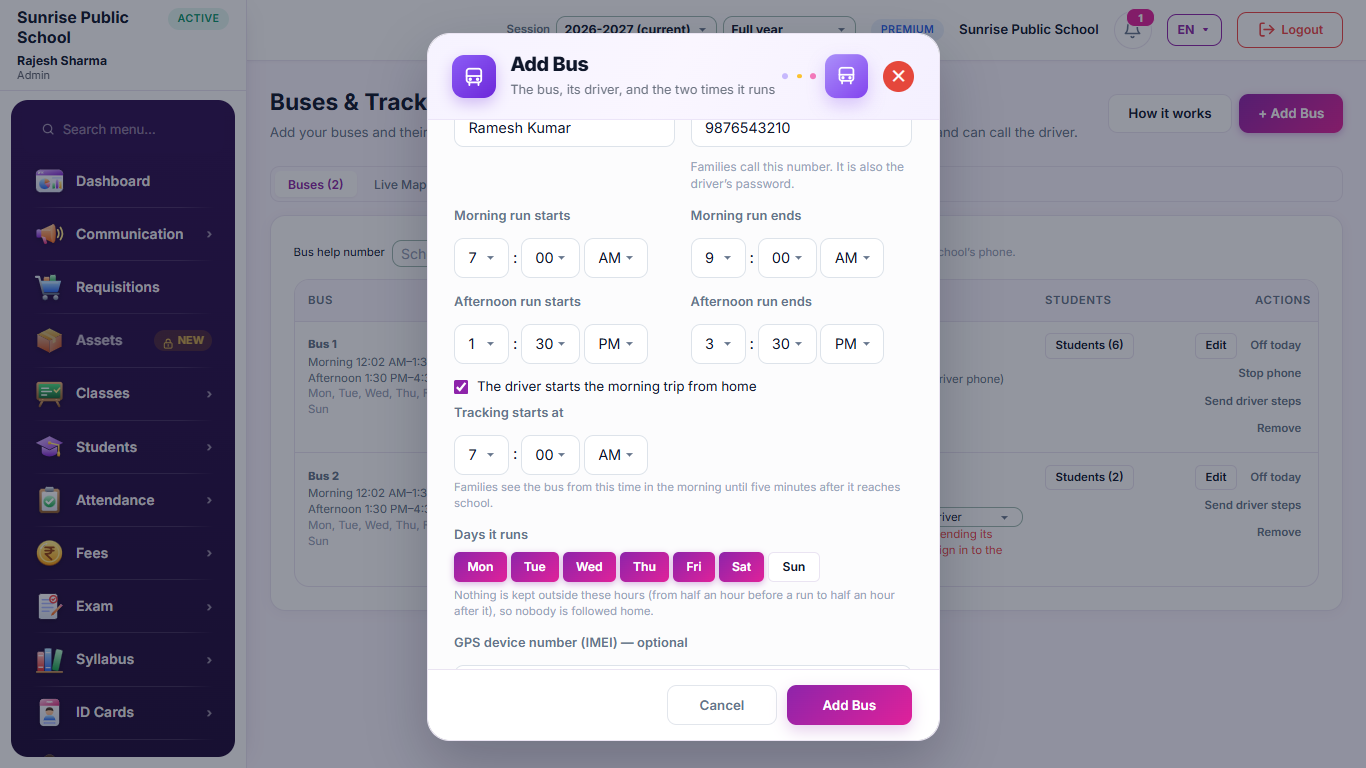
Press + Add Bus. Give the bus a name and its vehicle number, choose the driver from your staff (his mobile fills in by itself), and set the morning and afternoon times and the days it runs. If the driver keeps the bus at home and starts the morning trip from there, tick The driver starts the morning trip from home and give the time — once; it stays for every day until you change it. A bus that starts from school needs no time.
- 3
Put the children on the bus
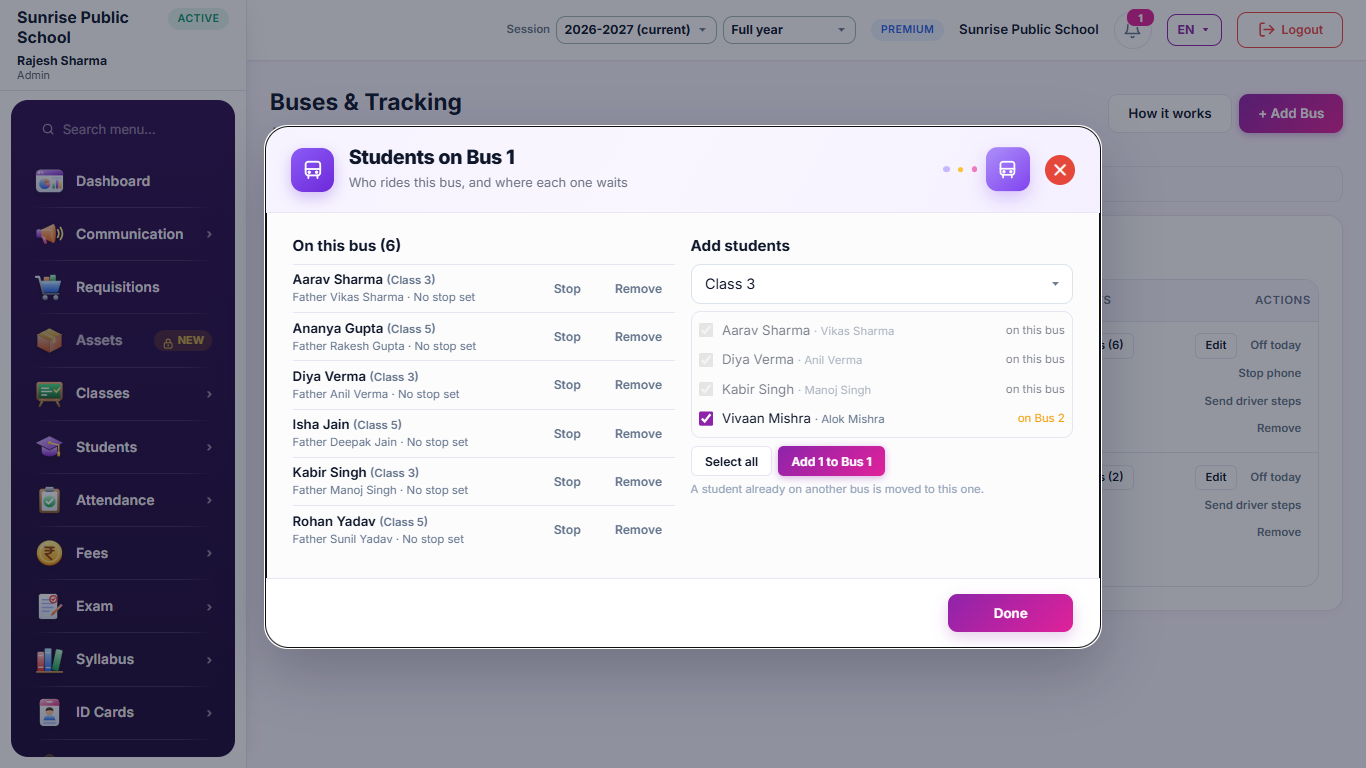
In the bus's row, press Students, choose a class and tick the children who ride it. Their families now see a Bus option in their app.
- 4
Tell the driver how to sign in
The driver signs in to the Zorik app with the bus number as the User ID and his mobile number as the password — both are in the bus's row. Send him the Driver steps on WhatsApp.

- 5
Mark the school, and how big its area is
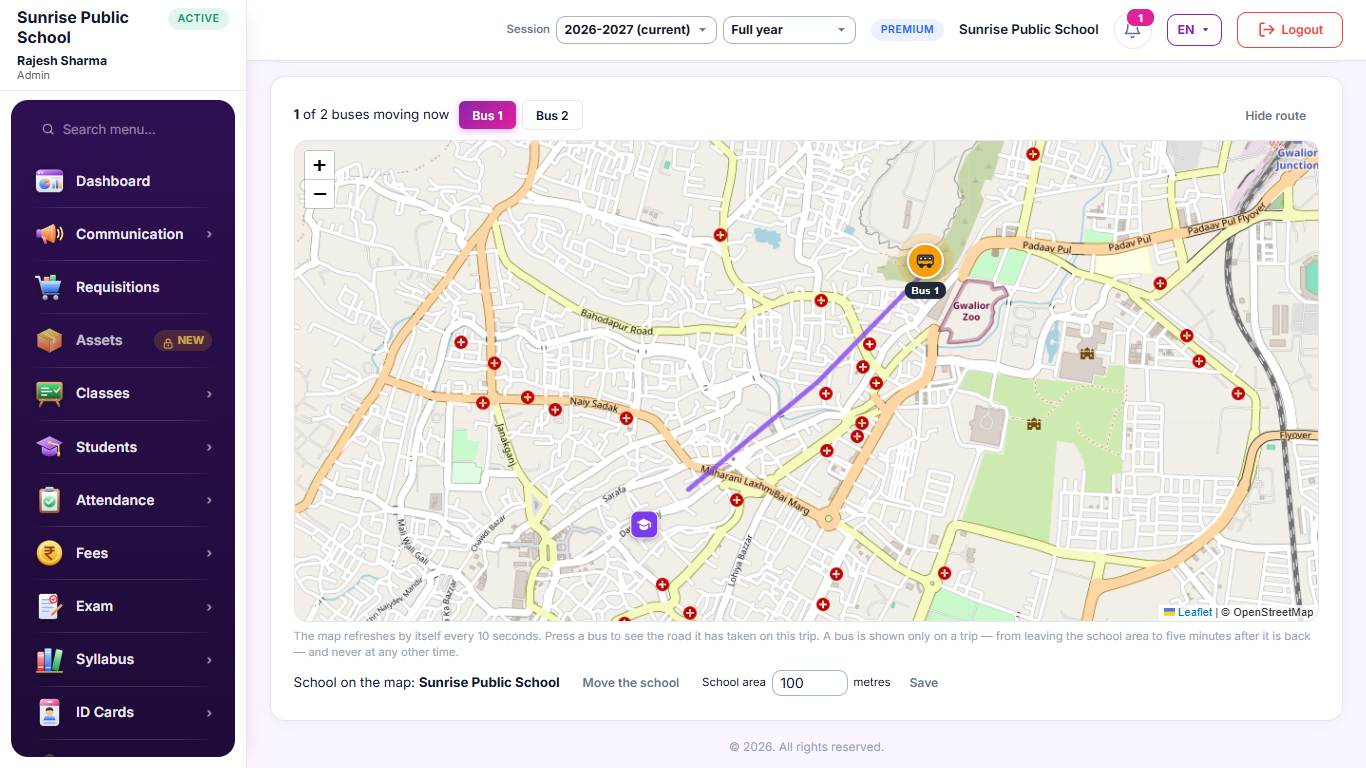
Once: on the Live Map tab, under the map, press Mark the school and tap where the buses stand. Beside it is the School area — 100 metres unless you change it; give a big campus more. A trip starts the moment a bus leaves this area and ends five minutes after it is back — morning and afternoon, every day, by itself. Without it, families see the bus for the whole of its hours.

- 6
Watch every bus, live
A bus on its trip moves on the map; press it to see the road it has taken on this trip. Before the trip, after it, and outside the bus hours nobody — not even the office — sees where it is. The Now column on the Buses tab says At school, Moving now or Trip over; press a bus's name to see it on the map. The driver is marked present on the staff register by himself the day the bus runs.
- 7
What the family sees
In the app only: the bus moving on a map, their own place as a blue dot, the road from the bus to them, how far the bus is from them and about how many minutes. Once the bus has gone past them, how far it is and how long they would take to reach it. And a Call driver button. On a holiday they see Today is a holiday; after the trip, Time over.
- 8
When there is nothing to show
Before the bus leaves school the family reads The bus has not left school yet; after the trip, Time over and when tracking starts again; on a holiday, Today is a holiday. The Call driver button stays.